How to Purchase Gift Cards
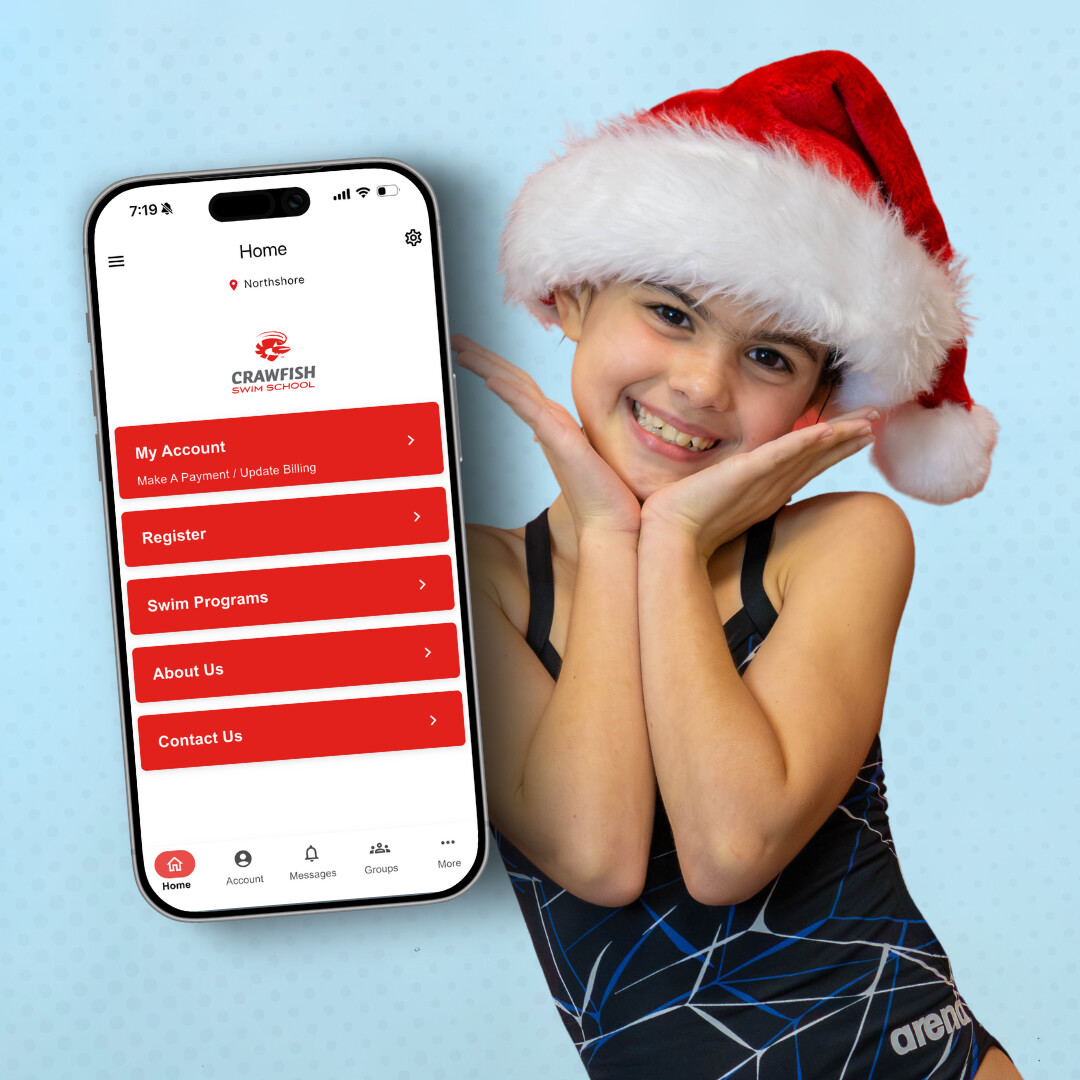
Step 1: Download or Update the App
E-gift cards are available exclusively through the Crawfish Swim School mobile app.
Already have the app? Update to the latest version to access our new Gift Cards feature.


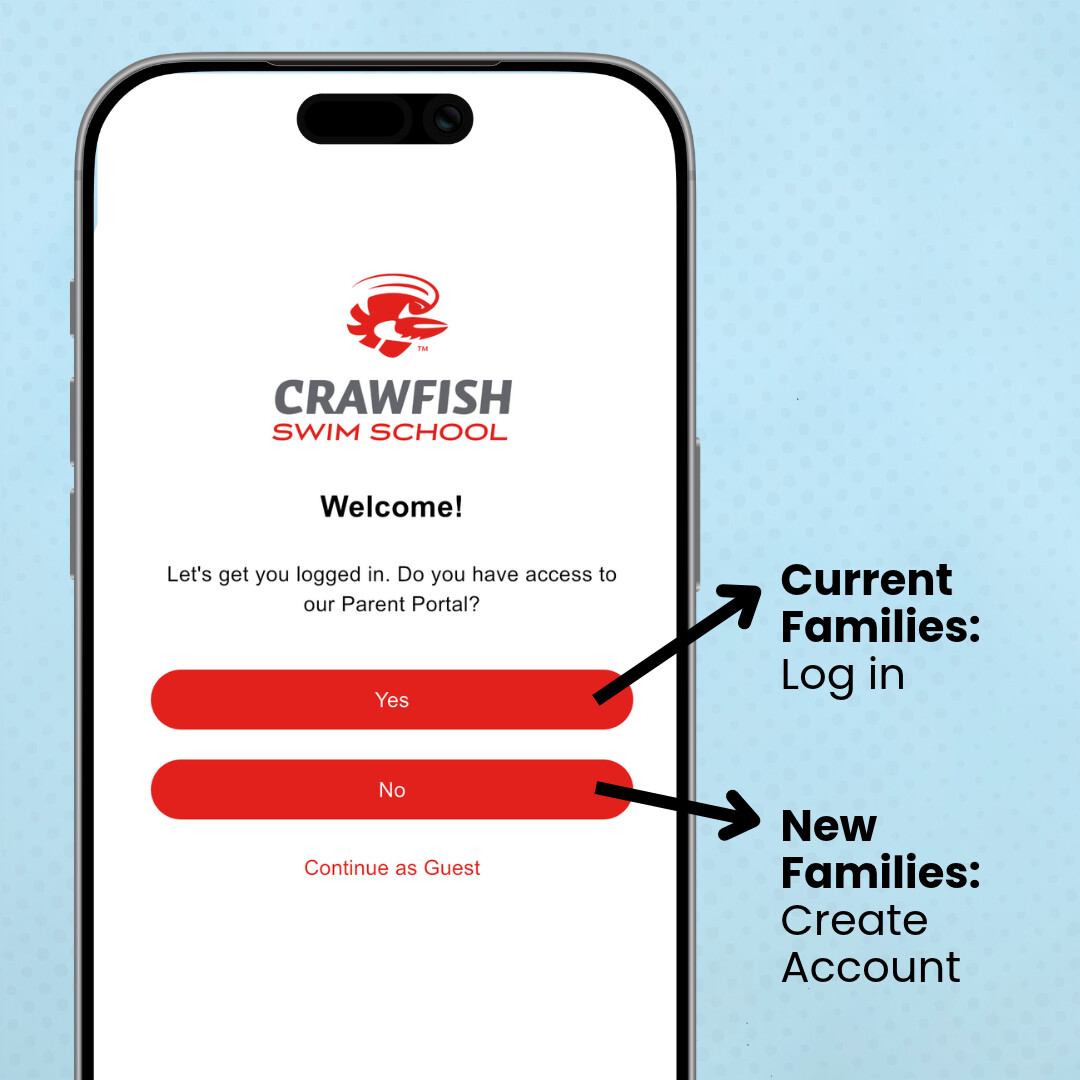
Current Families: Open the app and sign in using your existing account credentials.
New Families: Open the app and enter your email address when prompted to create an account.
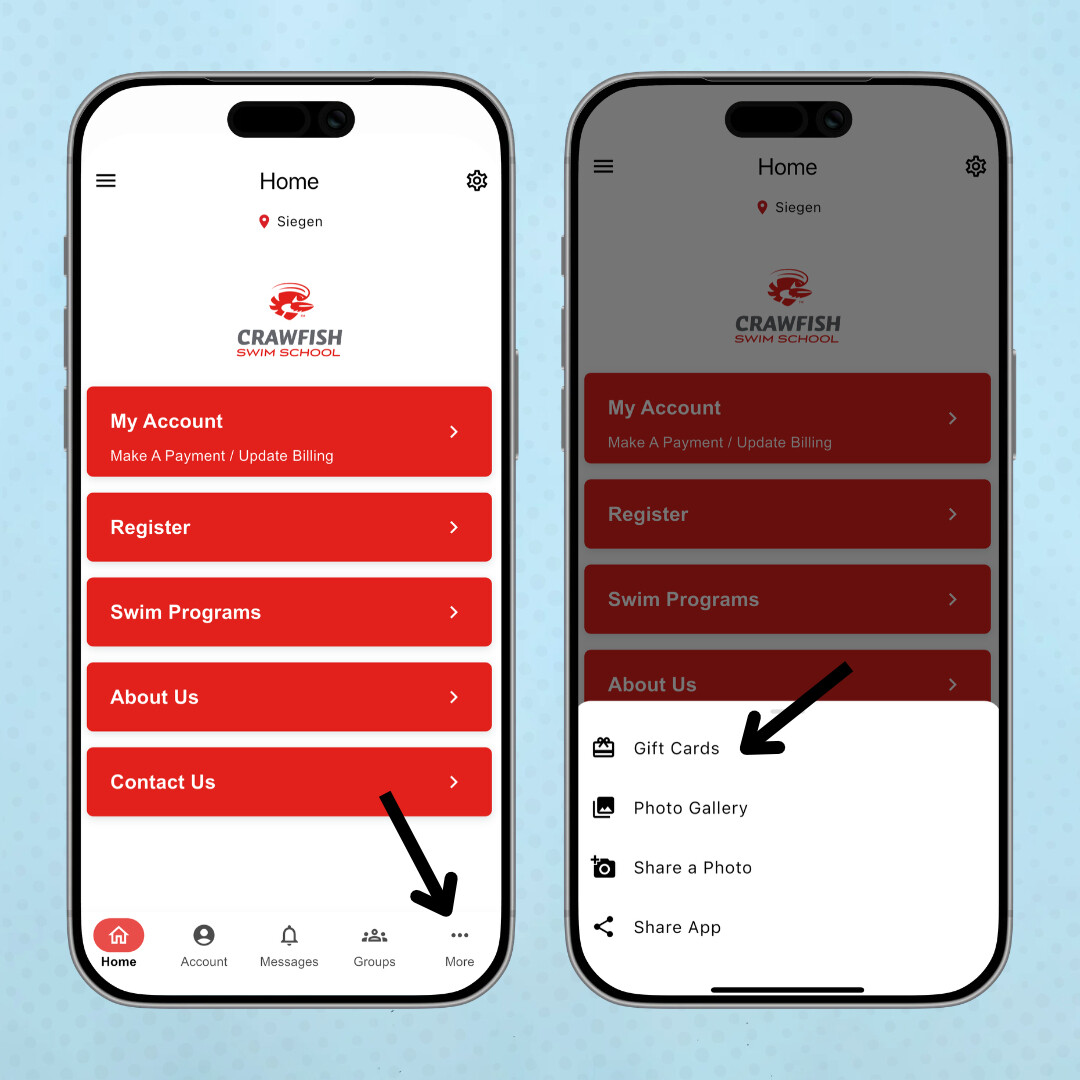
From the app homepage, tap the three dots in the bottom-right corner.
Select Gift Cards.
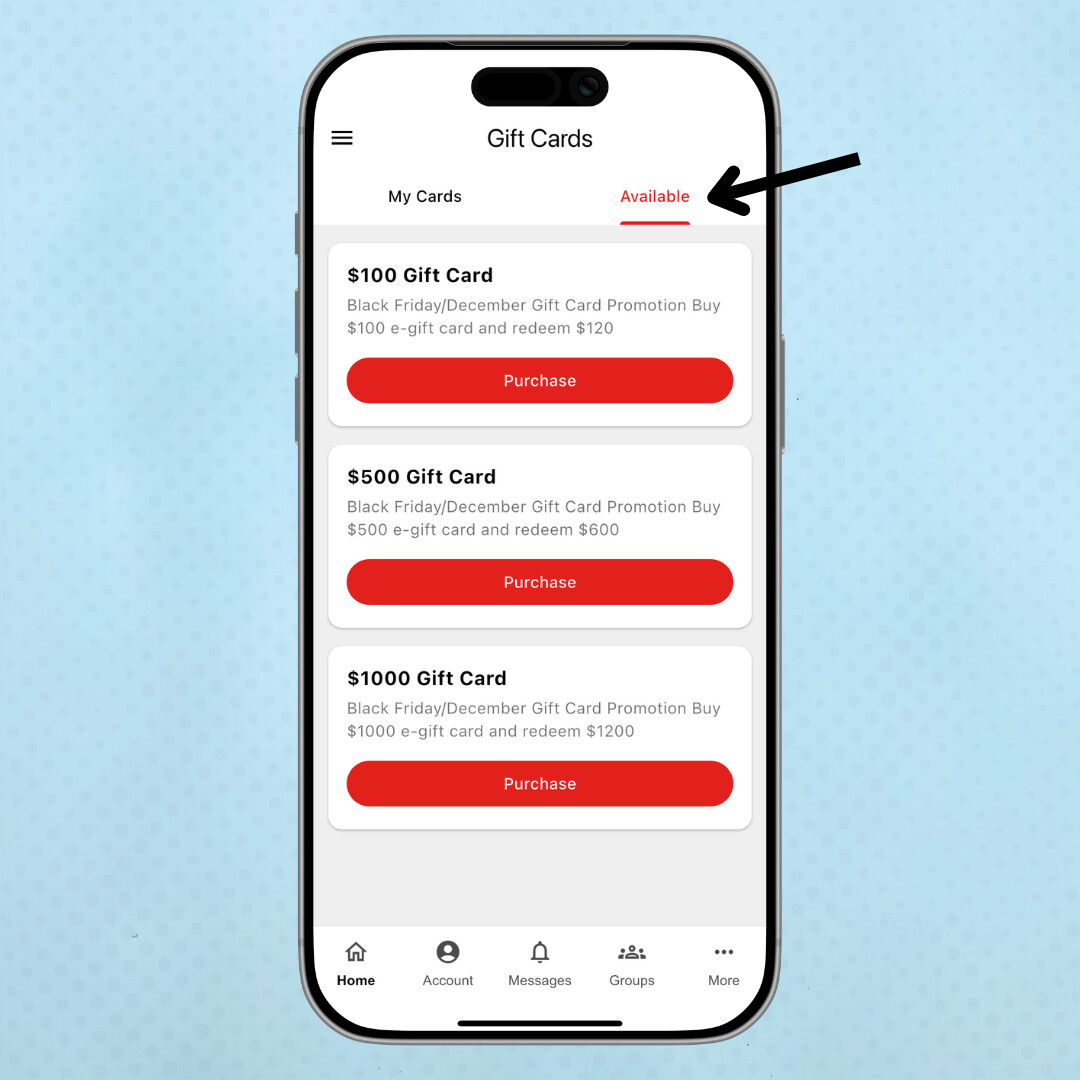
On the Gift Cards page, toggle over to the Available tab and select your gift card amount.
Three e-Gift Card options are available:
- $100- Receive $120 in gift card credit
- $500- Receive $600 in gift card credit
- $1,000- Receive $1,200 in gift card credit
You may purchase multiple gift cards to reach your desired amount. For example, purchasing three $100 gift cards gives you a total redeemable balance of $360.
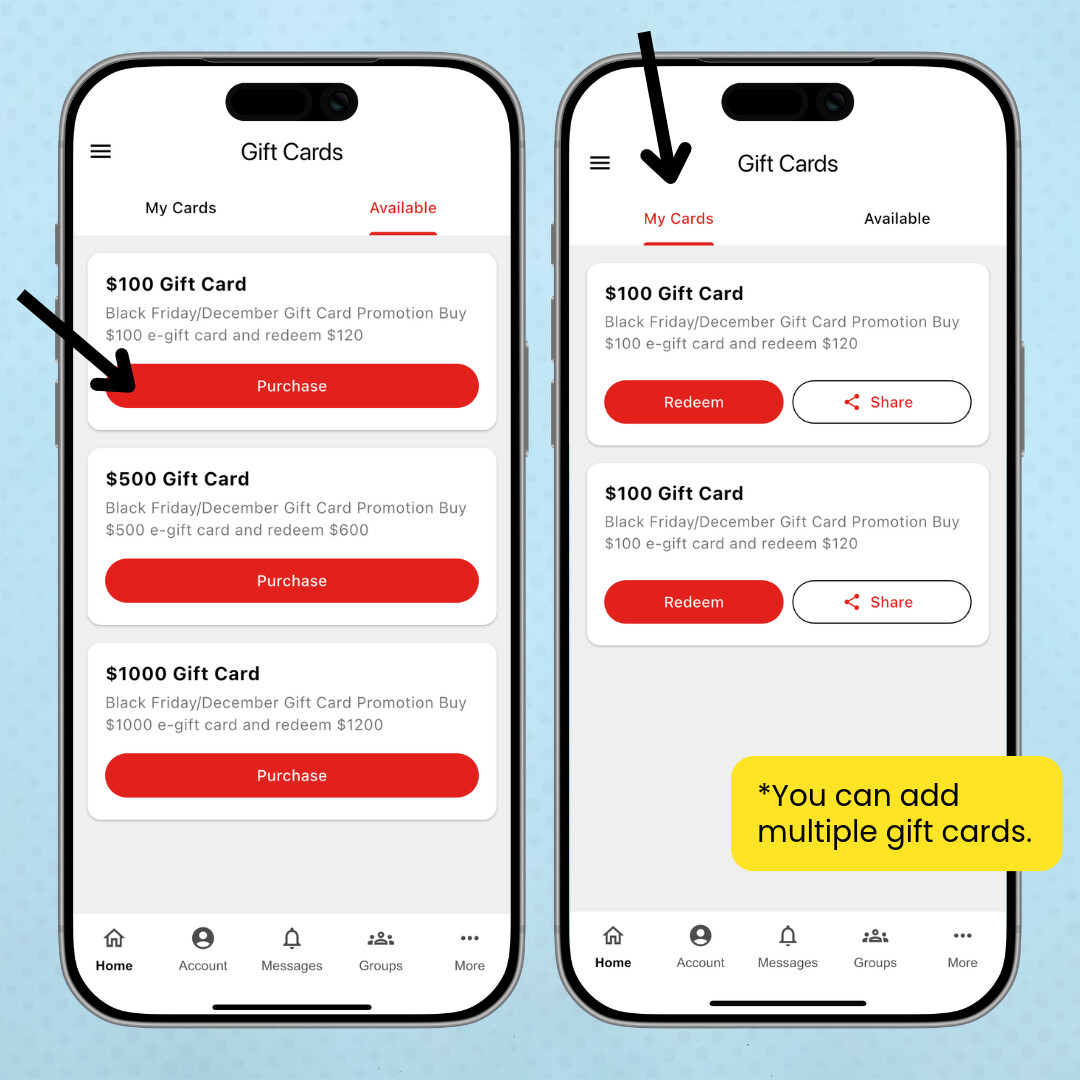
Tap Purchase next to your desired gift card.
New Families: You'll see a "Login Required" message. Tap Log In to continue. If you don't already have a Parent Portal account, you'll need to create one before completing your purchase.
IMPORTANT: Your purchase is not complete yet! Payment is not processed automatically. You must complete the payment separately through the Parent Portal. If you need to purchase multiple gift cards, add all to your account before making your payment.
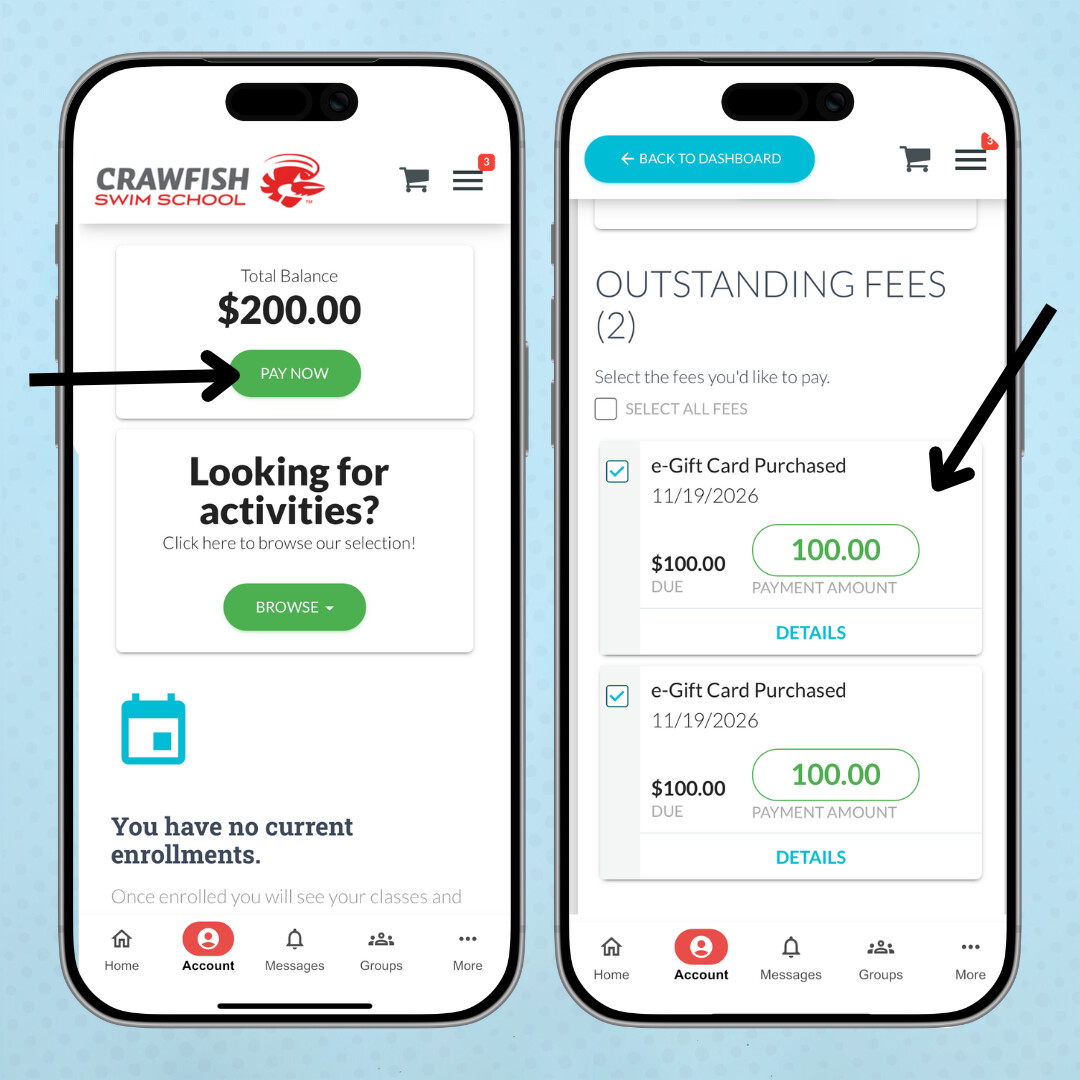
Return to the app homepage and select My Account.
Log in to the Parent Portal if prompted.
Select Pay Now beneath your current account balance.
Scroll down to select the e-Gift Card fee(s).
Select Pay Now to complete your purchase.
Your e-Gift Card purchase is complete once payment has been submitted!
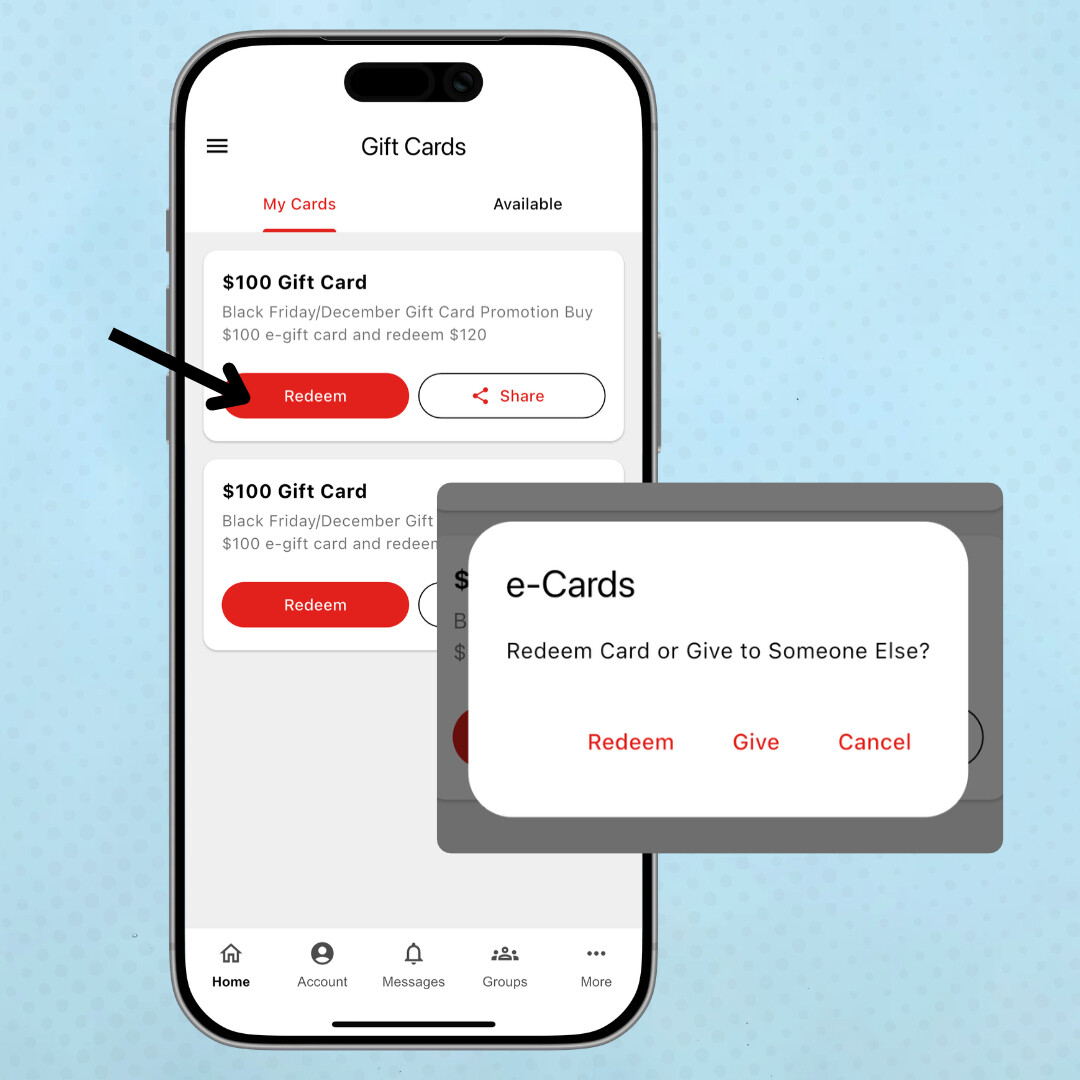
After purchase, Select Gift Cards on the homepage menu.
Under My Cards, you will see your purchased gift cards.
Click Redeem, then choose how you'd like to use your e-gift card:
- Click Redeem to add the total gift card amount, including bonus money, on your account.
- Click Give to send the full gift card value, including bonus money, to someone else via text message or email
When you return to your Account Dashboard, your gift card amount will appear as a negative balance, indicating a credit on your account.
Having trouble purchasing or redeeming your e-gift card? Our team is happy to help!